· IPTV Anbieter Team · Guide · 21 min read
IPTV Fire TV Stick 2026: Setup in 10 Minutes
IPTV on the Fire TV Stick: step-by-step setup with IPTV Smarters Pro & TiviMate, EPG configuration & troubleshooting. Plans from €15/month.
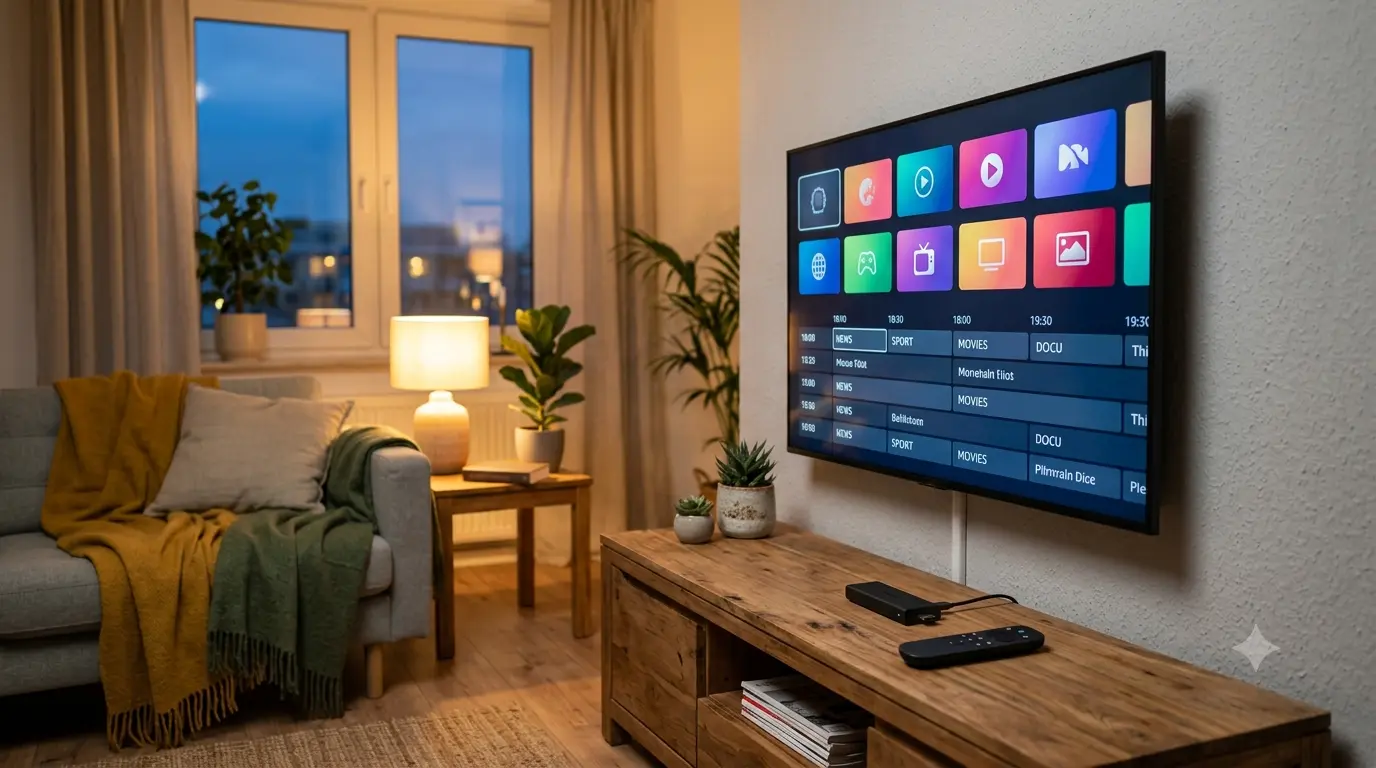
The Amazon Fire TV Stick is the most popular streaming device in German living rooms — and the easiest way to bring IPTV to your TV. Setup takes less than ten minutes: get the Downloader app from the Amazon App Store, use it to install IPTV Smarters Pro or TiviMate, enter your login details via the Xtream Codes API or an M3U URL, and you are done. From then on you receive live TV, Bundesliga soccer, movies, and series in Full HD or 4K UHD straight over your internet connection — no cable subscription, satellite dish, or receiver rental required.
That combination is exactly what makes the stick so attractive: it costs a fraction of a classic TV box, hides invisibly behind the television, and turns even an older screen into a full smart TV. If you already own a Fire TV Stick, getting started with IPTV from IPTV Anbieter requires no additional hardware at all — just the right app and a plan from €15/month.
This guide goes much deeper than the usual quick-start articles: you will learn which Fire TV model is actually worth buying for IPTV, which apps perform best in 2026, how to configure the EPG, favorites, and picture quality properly — and how to fix the five most common issues yourself in minutes. If you would rather start with a complete overview of legality, providers, and plans, read our comprehensive IPTV Germany Guide 2026 first.
Quick Summary / TL;DR
- Set up in under 10 minutes: install IPTV Smarters Pro or TiviMate via the Downloader app, enter your Xtream Codes login details, start watching.
- Every current stick works: the Fire TV Stick HD is enough for Full HD; for 4K UHD with H.265/HEVC we recommend the Fire TV Stick 4K or 4K Max.
- Best apps in 2026: IPTV Smarters Pro for beginners, TiviMate for the best EPG — both free.
- Smooth instead of choppy: 10 Mbit/s is enough for Full HD, 25 Mbit/s for 4K; clearing the app cache and disabling your VPN solves most buffering problems.
- Cost: plans from €15/month — no extra hardware needed if you already own a stick.
Try IPTV Anbieter before paying anything.
Table of Contents
- Why the Fire TV Stick Is the Best IPTV Device
- Legal Basics: Using IPTV Legally on the Fire TV Stick
- Which Fire TV Stick for IPTV? Models Compared
- The Best IPTV Apps for the Fire TV Stick
- Setup: Installing IPTV on the Fire TV Stick
- Fine-Tuning: EPG, Favorites, and Picture Quality
- Troubleshooting: Fixing Fire TV Stick Issues
- Pros and Cons of the Fire TV Stick for IPTV
- Frequently Asked Questions About IPTV on the Fire TV Stick
- Conclusion: Ready in 10 Minutes
Why the Fire TV Stick Is the Best IPTV Device
The Fire TV Stick is the first choice for IPTV because it combines three things: the largest selection of installable IPTV players among streaming devices, full compatibility with IPTV Smarters Pro, TiviMate, and GSE Smart IPTV, and a price far below that of a MAG-Box or an Nvidia Shield. Installation and login together take less than ten minutes.
Technically, the stick runs Fire OS, an Android derivative. That means virtually every IPTV app developed for Android TV or Google TV also runs on the Fire TV Stick. The best-known players — IPTV Smarters Pro and TiviMate — are not listed in the Amazon App Store, but the free Downloader app installs them in a few minutes, using a route Amazon officially provides. Closed systems like Samsung Tizen or LG webOS simply offer nothing comparable.
Compared with the alternatives, the stick holds up remarkably well. A smart TV running Samsung Tizen or LG webOS can play IPTV natively, but the app selection there is noticeably smaller — TiviMate, for instance, does not exist for Tizen at all. Apple TV is beautifully built but costs several times as much. A Chromecast without Google TV strictly requires a smartphone as a remote source. And a classic MAG-Box is sturdy but clearly dated in its interface and handling. The Fire TV Stick hits the sweet spot of price, convenience, and app variety.
Then there is portability: the stick fits in your pocket. In a hotel, a vacation rental, or at a friend’s place, you plug it into a free HDMI port, connect it to the Wi-Fi — and your entire channel lineup, including EPG and favorites, travels with you. For an overview of what our team handles around setup and day-to-day operation, see our IPTV services.
When a Different Device Makes More Sense
To be fair, there are exceptions. If you already own a high-quality Android TV television (Sony, for example), you do not need an extra stick — the same apps run natively there. Power users with large media libraries reach for the Nvidia Shield, which offers more processing power and better upscaling. For everyone else: the Fire TV Stick is the sweet spot, which is exactly why this guide focuses on it.
Get trial access on WhatsApp within minutes.
Legal Basics: Using IPTV Legally on the Fire TV Stick
IPTV as a technology is fully legal in Germany — what matters is that the provider streams licensed content. Installing IPTV Smarters Pro or TiviMate via Downloader is legally harmless, too; both are pure players. Copyright law and your service’s terms are what count.
The legal framework is quickly explained: apps like IPTV Smarters Pro, TiviMate, or VLC are neutral playback programs — comparable to a web browser. Only the source of the streams determines legality. You can recognize reputable providers by transparent pricing, a proper legal notice, real support channels, and clear terms of service. A detailed chapter on the legal situation, including the role of the Bundesnetzagentur, is part of our in-depth guide to IPTV legality in Germany; the short version: if you use a licensed service, you are on the safe side.
Two points are especially relevant for Fire TV users. First, GDPR: a European provider must process your data under European data protection law — pay attention to what data is even collected at sign-up. With us, a name and a WhatsApp number are enough. Second, EU portability: since the portability regulation took effect, you may take your subscription with you when traveling within the EU. Your Fire TV Stick works on vacation in Mallorca exactly as it does in your living room in Cologne — no VPN required.
A widespread misconception concerns sideloading — installing apps via the Downloader app instead of the store. Many people reflexively equate it with piracy, and wrongly so: the procedure is legal and officially supported by Amazon (Settings → My Fire TV → Developer options → “Install unknown apps”). It is exactly how you install IPTV Smarters Pro and TiviMate, since neither is listed in the Amazon App Store. The only thing that matters is the source: download the APK exclusively from the respective developer’s official website — never from shady APK portals.
Which Fire TV Stick for IPTV? Models Compared
For IPTV in Full HD, the cheapest Fire TV Stick HD is sufficient; if you want 4K UHD streams with H.265/HEVC, go for the Fire TV Stick 4K or 4K Max. The 4K Max offers Wi-Fi 6E and the smoothest menus, while the Fire TV Cube adds an Ethernet port for maximum stability.
Amazon currently sells four relevant models. The differences look small on the spec sheet but have a real impact on streaming — especially codec support and the Wi-Fi standard:
| Model | Max. resolution | Codecs | Wi-Fi | Special feature | IPTV recommendation |
|---|---|---|---|---|---|
| Fire TV Stick HD | Full HD (1080p) | H.264, H.265/HEVC | Wi-Fi 5 | Cheapest entry point | Solid for HD households |
| Fire TV Stick 4K | 4K UHD | H.264, H.265, AV1 | Wi-Fi 6 | HDR10, Dolby Vision | Best value for money |
| Fire TV Stick 4K Max | 4K UHD | H.264, H.265, AV1 | Wi-Fi 6E | Fastest stick, 16 GB storage | For heavy viewers & sports |
| Fire TV Cube | 4K UHD | H.264, H.265, AV1 | Wi-Fi 6E | Ethernet port, hands-free Alexa | Maximum stability |
The most important column is the codec column: modern IPTV streams in 4K UHD are delivered almost exclusively in H.265 (HEVC), because the codec needs roughly half the bandwidth of H.264 at the same picture quality. Every current stick decodes HEVC in hardware — with very old sticks from before 2018 that is not guaranteed, and they stay limited to Full HD.
The second thing to look at is Wi-Fi. Wi-Fi 6 and 6E matter less for raw speed and more for stability in households full of wireless devices: fewer packet losses mean less buffering in a live stream. If your TV sits far away from the router, consider the Fire TV Cube with its Ethernet port — or the separate Ethernet adapter for the stick models. For a technical overview of the device family, see the Wikipedia article on Amazon Fire TV.
Bottom line: for most households the Fire TV Stick 4K is the right choice. It combines 4K UHD, HDR10, and Wi-Fi 6 at the mid-range price — and runs flawlessly with every popular IPTV app.
We set up IPTV together with you — free via WhatsApp.
The Best IPTV Apps for the Fire TV Stick
The best IPTV app for beginners is IPTV Smarters Pro: free, intuitive, with an Xtream Codes login that takes two minutes. Heavy viewers switch to TiviMate, whose EPG program guide is unmatched in clarity. GSE Smart IPTV and IBO Player are solid alternatives, and OTT Navigator is the pick for tinkerers.
IPTV Smarters Pro is the standard we recommend to new customers. The app splits live TV, movies, and series into separate sections, supports multiple profiles (handy for families), recordings, and a built-in player that handles HLS streams as comfortably as MPEG-TS. You sign in either via the Xtream Codes API — server URL, username, password — or via an M3U URL. For 95% of users, Smarters is the app they stick with.
TiviMate shows its strength as soon as you watch TV daily: the EPG is the heart of the app and displays up to seven days of programming in a grid view reminiscent of classic cable receivers — only faster. Favorite lists, catch-up, and customizable channel ordering make TiviMate the best choice for Bundesliga fans who hop between Sky Sport, DAZN feeds, and free-to-air channels like Das Erste or ZDF. The basic version is free; some convenience features require the premium unlock.
GSE Smart IPTV and IBO Player are proven alternatives if the two front-runners’ interfaces are not for you. GSE scores with broad format support (M3U, M3U8, XMLTV, JSON), IBO with a clean, TV-friendly interface. OTT Navigator, finally, offers the deepest customization — from tile size to EPG density — but demands some learning time. Kodi and VLC deserve a mention for completeness: both play IPTV playlists, but as a media center and universal player respectively, they are not optimized for live TV comfort.
All of the apps above work with our service — the login details are identical, so you can switch or test them side by side at any time. Answers to common app questions are collected on our FAQ page.
Our team usually replies within a few minutes.
Setup: Installing IPTV on the Fire TV Stick
The installation always follows the same pattern: authorize the Downloader app, install the player, enter your login details, check the EPG, create favorites. With the following six steps you are ready in under ten minutes — no technical background required; Downloader walks you through it.
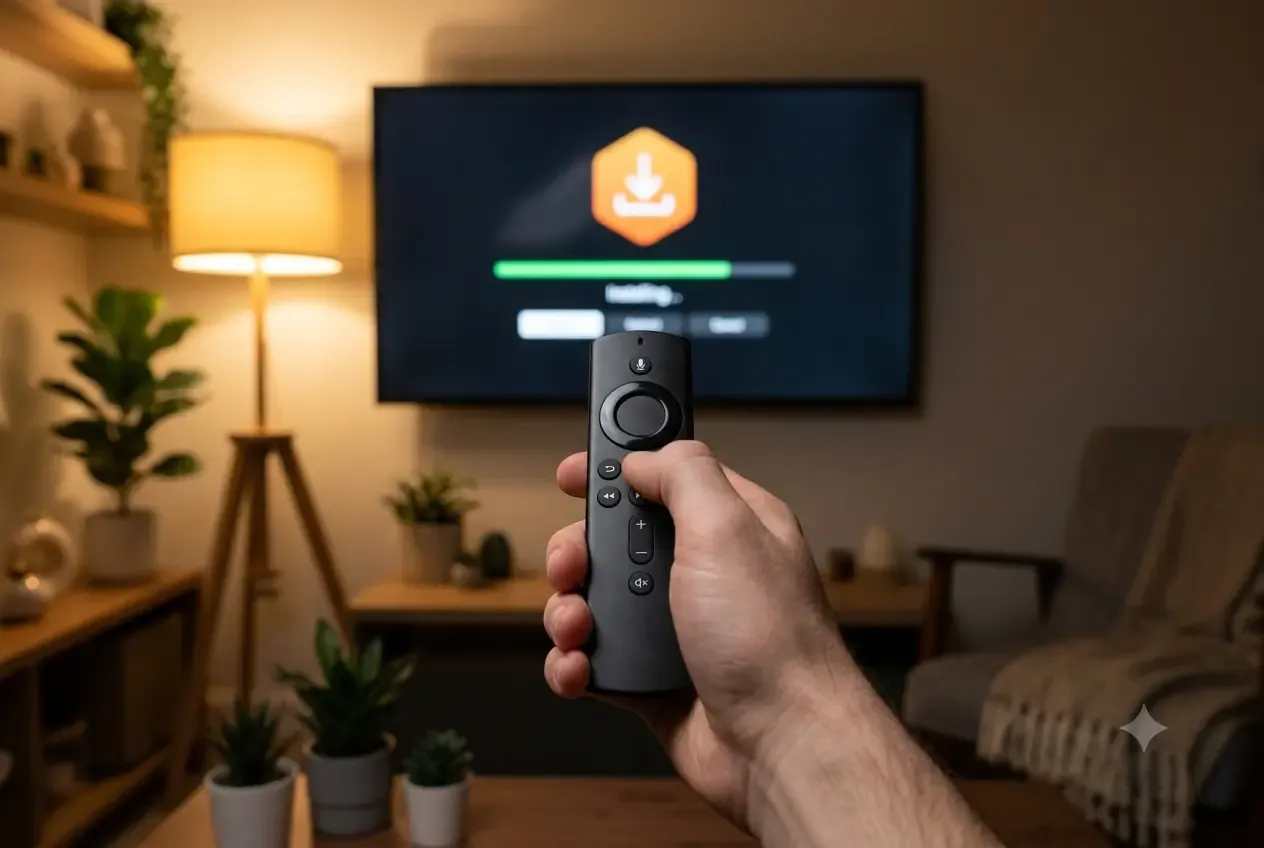
- Install and authorize Downloader. Press the magnifying-glass button on the Fire TV remote, search for “Downloader,” and install the orange app — it is free and officially listed in the Amazon App Store. Then allow it to install apps under Settings → My Fire TV → Developer options → “Install unknown apps.” If the developer options are missing, tap the device name seven times under “About.”
- Load the IPTV app via Downloader. Open Downloader and enter the official APK address of IPTV Smarters Pro or TiviMate (always use the developer’s own website). The app downloads the file, starts the installation automatically, and cleans up the APK afterwards. A minute later the player sits on your home screen.
- Sign in via the Xtream Codes API. Open the app and choose “Login with Xtream Codes API.” Enter the server URL, username, and password exactly as you received them via WhatsApp after ordering. Mind upper and lower case — the most common login error is a typo in the URL.
- Alternative: load an M3U URL. If you received an M3U8 playlist instead, choose “Load M3U URL” and paste the address. Content-wise there is no difference — the Xtream login and M3U lead to the identical channel list; the Xtream route simply loads channel logos and VOD categories a bit more comfortably.
- Activate the EPG. IPTV Smarters Pro and TiviMate usually load the XMLTV program guide automatically on first launch. If the guide stays empty, open the app settings, enter the EPG URL manually, and trigger a refresh. After one to two minutes the guide fills up.
- Create favorites and test. Mark your go-to channels — say RTL, ProSieben, Sky Sport, or Eurosport — as favorites and start a test stream. If the picture is stable, setup is complete. If it stutters, the troubleshooting section below has you covered.
A note for customers who already use other devices: your login details are valid on the Fire TV Stick, too. Depending on your plan, you can use the same account on several devices in parallel — the details are in the plan overview.
Setting up TiviMate Instead of Smarters
The flow in TiviMate differs slightly and deserves its own mini-guide. On first launch the app asks for a playlist: choose “Xtream Codes login,” enter the same login details, and let TiviMate import the channel list. The app then offers to link the EPG automatically — confirm that. Important for switchers: TiviMate organizes channels into its own categories, which you can show or hide under “Settings → Playlists → Manage groups.” If you stream from Germany, hide the foreign-language packages right away — it shortens the program guide’s loading time considerably and keeps the channel list tidy. The premium version unlocks recordings and multiple playlists; for testing, the free tier is completely sufficient.
Common First-Time Setup Pitfalls
Three small things cost beginners the most time. First: the server URL belongs in the URL field with its port — exactly as delivered, without extra trailing slashes. Second: after the first login the app downloads the full channel list; with more than 50,000 channels that can take a minute — do not cancel the process. Third: make sure the stick sets its clock automatically (Settings → Preferences → Time zone), otherwise the EPG shows shifted air times.
Fine-Tuning: EPG, Favorites, and Picture Quality
After the basic setup, ten minutes of fine-tuning pay off: a cleanly configured EPG, sensibly sorted favorites, and the right resolution setting lift the IPTV experience to premium-receiver level — and prevent the typical everyday annoyances, from an empty program guide to washed-out HDR colors.
Optimize the EPG. Set the XMLTV guide’s refresh interval to once per day — more frequent updates add nothing and slow down app launches. In TiviMate it also pays to limit the EPG preview to 12 hours and hide unused categories (foreign-language channel packages, for example). That speeds up the grid view noticeably, especially on the Fire TV Stick HD with its smaller memory.
Structure your favorites. Do not create one giant list — create several themed ones: “Sports” with Sky Sport, DAZN channels, Eurosport, and Sport1; “Family” with Das Erste, ZDF, RTL, Sat.1, ProSieben, VOX, and Kabel Eins; plus documentary or movie lists to taste. That way you navigate with two button presses instead of scrolling through thousands of channels. A tip for Bundesliga weekends: place the conference feed and single-match channels next to each other, and switching becomes a matter of seconds.
Set the picture quality. Check under Settings → Display & Sounds that the stick outputs your TV’s native resolution — 4K sticks occasionally fall back to 1080p if the HDMI cable did not cooperate at first boot. Enable HDR10 only if your TV supports it; otherwise colors look washed out. And leave the “monitor data usage” option in the Fire TV settings disabled — it throttles stream quality otherwise.
Use Alexa voice control. An underrated advantage of the Fire TV Stick: the remote listens. “Alexa, open IPTV Smarters Pro” launches the app from the home screen, and inside many players, playback commands like pause and resume work by voice. It does not replace a full channel search, but it speeds up daily use — especially when the remote has vanished between the couch cushions again. HDMI-CEC pairing is practical too: the stick automatically turns on the TV and switches to the right input when it wakes, so IPTV feels like a classic receiver.
Second device and family profiles. If IPTV runs on several TVs in your home, set up each Fire TV Stick with the same login details — depending on your plan, parallel streams on multiple devices are possible. In IPTV Smarters Pro you can additionally create separate profiles, for example a kids’ profile that only sees the family favorites list. The living room lineup stays tidy while the sports list waits in the bedroom.
Stabilize the network. IPTV is live streaming over HLS — constant bandwidth beats peak speed. 10 Mbit/s is enough for Full HD, 25 Mbit/s for 4K UHD, but the rate has to hold steady. Ideally place the router in the same room, use the 5 GHz band, or retrofit the Ethernet adapter mentioned earlier. In multi-person households it helps to give the Fire TV Stick a high QoS priority in your router.
Available around the clock — answers usually within minutes.
Troubleshooting: Fixing Fire TV Stick Issues
The five most common Fire TV problems — buffering, black screens, an empty EPG, app crashes, and failed logins — can almost always be fixed in a few minutes on your own. The proven order: check bandwidth, clear the app cache, restart the stick, disable the VPN, and only then contact support.
1. The Stream Buffers or Freezes
Cause: usually fluctuating Wi-Fi bandwidth, more rarely an overloaded stream server. Fix: run a speed test on the stick (at least 10 Mbit/s for Full HD, 25 Mbit/s for 4K UHD). Clear the app cache (Settings → Applications → Manage Installed Applications → IPTV Smarters Pro → Clear cache), restart the stick, and disable any running VPN. If that does not help, switch to the 5 GHz Wi-Fi band or the Ethernet adapter as a test.
2. Black Screen on Individual Channels
Cause: the channel is delivered in a codec an old stick model cannot decode (typically H.265 on a pre-2018 stick), or the individual stream is failing server-side. Fix: test the same channel in a second app (VLC, for instance) — if it plays there, the player settings are at fault: switch the player in Smarters from “hardware decoder” to “software.” If the channel stays black everywhere, report it briefly via WhatsApp — server-side issues are usually fixed within hours.
3. The EPG Stays Empty or Shows Wrong Times
Cause: the XMLTV source was not loaded, or the stick’s time zone is set incorrectly. Fix: check the time zone first (Settings → Preferences → Time zone → Europe/Berlin). Then trigger the EPG refresh manually in the app. In TiviMate, additionally verify that the EPG source is set to active — after app updates it occasionally flips to “inactive.”
4. The App Won’t Start or Keeps Crashing
Cause: a full app cache or too little free storage — the classic on older 8 GB sticks. Fix: delete the app’s cache and data (careful: you will need to re-enter your login details), uninstall unused apps, and unplug the stick from power — wait ten seconds, plug it back in. A full power cycle resolves stubborn Fire OS hangs more reliably than the menu restart.
5. Login Fails
Cause: nine times out of ten, a typo in the server URL, username, or password; otherwise an expired subscription. Fix: enter the login details exactly as received — including the port and without spaces. If in doubt, check your subscription’s remaining term. If you are still stuck, write to us via the contact page or directly on WhatsApp — our support responds around the clock, weekends included.
Pros and Cons of the Fire TV Stick for IPTV
The Fire TV Stick is the best overall package for IPTV — with clear strengths in price, app selection, and setup speed, but also honest weaknesses: the stick models lack an Ethernet port without an accessory, entry-level models are short on storage, and the Amazon interface shows ads.
Pros
- Unbeatable value for money: a fully capable IPTV device at a fraction of the price of a MAG-Box or an Apple TV.
- The largest player selection: IPTV Smarters Pro, TiviMate, GSE Smart IPTV, IBO Player, and OTT Navigator all run on Fire OS — Samsung Tizen and LG webOS offer only a fraction of that lineup.
- Set up in minutes: the Downloader app walks you through the installation, no technical knowledge needed; from unboxing to the first stream takes less than ten minutes.
- 4K UHD with HDR10: the 4K models decode H.265/HEVC in hardware and deliver receiver-grade picture quality.
- Portable: channel list, EPG, and favorites travel in your carry-on — and thanks to EU portability, legally so.
- Unlike MagentaTV or waipu.tv, you are not locked into a single operator’s platform: the stick plays any service that supports Xtream Codes or M3U.
Cons
- No Ethernet port on the stick models: for maximum stability you need the separate adapter or the Fire TV Cube.
- Tight storage on entry-level models: 8 GB fills up with just a few apps; the 4K Max with 16 GB is the more relaxed choice.
- Ads in the interface: the Fire TV home screen promotes Amazon content prominently — the IPTV app itself is unaffected.
- Wi-Fi dependency in older buildings: thick walls cut throughput; the only remedies are 5 GHz optimization, powerline, or the Cube.
- Manual app updates: players installed via Downloader do not update automatically — you install new versions the same way when needed.
Subscribe and start streaming in 5 minutes.
Frequently Asked Questions About IPTV on the Fire TV Stick
Does IPTV work on every Fire TV Stick?
Yes. IPTV Smarters Pro and TiviMate run on all current models — Fire TV Stick HD, 4K, 4K Max, and Fire TV Cube. For 4K UHD streams you need a 4K model with H.265/HEVC support; for Full HD, even the cheapest stick is enough.
Which IPTV app is the best for the Fire TV Stick?
IPTV Smarters Pro is the best choice for beginners: free, intuitive, with an Xtream Codes login that takes two minutes. TiviMate offers the best EPG program guide and is ideal for heavy viewers. You install both in a few minutes via the Downloader app.
How much does IPTV on the Fire TV Stick cost?
The IPTV subscription costs €15/month, €35/3 months, €45/6 months, or €65/year. The apps themselves are free. Many households already own a Fire TV Stick — no additional hardware is needed.
Is IPTV on the Fire TV Stick legal?
IPTV as a technology is completely legal in Germany — what matters is the provider. Reputable services stream licensed content and publish transparent terms. Copyright law sets the framework; installing the player apps via Downloader is an officially supported, legal route provided by Amazon.
What should I do if IPTV buffers on the Fire TV Stick?
Check your bandwidth (at least 10 Mbit/s for Full HD, 25 Mbit/s for 4K UHD), clear the app cache, restart the stick, and disable any active VPN. If buffering persists, use an Ethernet adapter instead of Wi-Fi or ask support to switch your stream server.
Do I need a VPN for IPTV on the Fire TV Stick?
For a licensed IPTV service you do not need a VPN. Within the EU, EU portability applies: your subscription works on vacation just like at home. A VPN can actually reduce speed and cause buffering.
Conclusion: Ready in 10 Minutes
No other device makes getting into IPTV as easy as the Fire TV Stick: get Downloader, install the player, sign in — done. With the Fire TV Stick 4K, IPTV Smarters Pro, and the fine-tuning tips from this guide, you bring receiver-grade comfort to any TV — Bundesliga, 4K UHD, and a seven-day EPG included.
The next step is deliberately small: pick the plan length that suits you in the pricing overview — from €15/month, with no hidden costs. After ordering you receive your login details via WhatsApp, and with the six steps from this guide you will be watching the very same evening. Everything beyond that — from provider comparisons to the legal situation — is continuously covered with new guides on our German IPTV portal.
About the IPTV Anbieter Team — Who we are
The IPTV Anbieter Team helps customers across Germany, Austria, Switzerland, and all of Europe enjoy a seamless IPTV streaming experience. Our support team is reachable around the clock via WhatsApp for setup, troubleshooting, and subscription questions.